
The drafting process is a visual & specification agreement between the supplier & the customer. When jobs come in they should contain enough information for the supplier to design the customer's artwork onto the product. It should include all the correct variations about the product including colours used and artwork placement.
- When a new Job has been received, open up the Job and you will see that there are files located in the Job Files folder
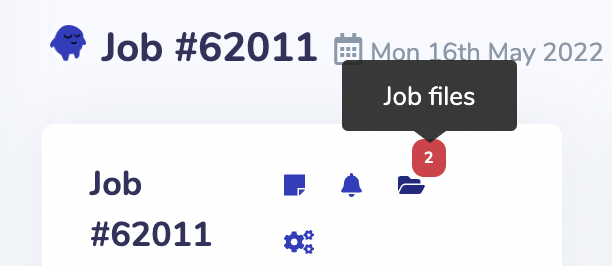
- Click on the folder to download the files to create your draft in an external graphics application eg: Photoshop, Canva etc
- Or you can use the Merchi Product Drafting tool
- Click on Create Draft and the Merchi Product Drafting tool will load
- In the Product Images folder you will find the blank product template. Select the appropriate file which will load the template onto the canvas
- Using the toolbar above you can find the customer uploaded files plus other customisation such as image upload, text entry, free draw tool
- Once finished, click Save Image below
- You can create extra drafts such as back or side prints, by clicking New Image and following the steps above
- Once finished, click Upload to submit to customer
- If you require further information or files from the customer you can create a drafting link by sending them a drafting comment. This will then enable the customer to either upload their files or use the Merchi Product Drafting tool
- The Job Manager can continue to communicate with the customer, upload further drafts and manage revisions and communications via email / SMS
- When the customer is happy with the draft they will Approve and you will be notified
- Production can now begin
Comments
0 comments
Please sign in to leave a comment.