
Once your Company profile has been created you will need to complete the following to ensure that your company is fully set up for trading on Merchi.
In the left hand navigation select Company and your Company Name. This is your main Company profile page.
Move through each of the tabs at the top to complete your Company profile.

Info
- Ensure all of your Company contact details are correct.
- Click Save
Members
- Shows all Active Members associated with the Company as well as any Invitations that have been sent out.
-
If you are a Company Admin, you can: remove members, edit member roles and invite new Company Members
- You can edit their role and profile from this page as well as delete the Member
- To add a new Member to the company, under Invitations, click the + button and enter their full name, email address and their Company role.
- The Company role choices are:
- Admin - has permission to: edit company information and add/remove company entities which include: Domains, Members, Shipments, Shipment Methods and Invoice
- Member - can access Company information but cannot edit it
Domain
- View all Domains that are set up under your Company
- Click on Domain icon or the Edit icon to view or edit the Domain
Payment Options
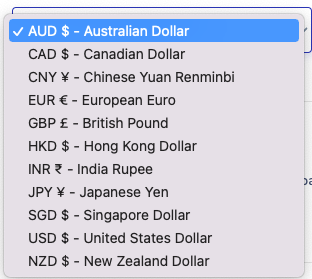
- Select the currency that your Company would like their funds to be paid
-
Merchi supports multiple payment gateways/payment methods for your company
NOTE: Stripe is a platform requirement and must be set for you to receive "upfront credit card payments" and for creating "automatic payment relationships (product chaining)
-
Stripe - If you have a Stripe account, enter your Stripe Keys. If new to Stripe, click Setup payouts with Stripe Express. Note that Stripe is Disabled as a payment option until you complete the setup
- PayPal - Add PayPal account details to enable this payment method
- Bank Transfer - If you would like to accept bank transfers, enter in the Company’s bank account information and click Set
- Phone Payment - If you would like to accept payments over the phone enter your phone number here
-
Taxation
Country tax type and Country tax number/id
Some Countries may require you to display taxation credentials on your invoices. If this is a requirement for your Company Country of origin, please follow the below steps:
- Click on the + button to add a new Tax Type
- Select the Country you are charging tax from
- Enter the name of the tax eg: GST, VAT and the percentage required for sales tax
- Click Create
- Consult your tax agent for further advice
- Once created you can add this Tax Type above
Default tax type
-
Select a default tax type which will be displayed by default on entities related to your company
Shipment Methods
Control how much you charge your customers for shipping by creating shipment methods. Once created, shipment methods can be applied to products, jobs, shipments and invoices.
- To create a shipment method, click on the + button
- You can create a default shipping method for all products. Select the shipping method or Transport Company you wish to use and enter a default cost of how much your customer will be charged for the shipping of a product
- Click on the + button to add weight and price shipping breaks that can be customised to cover all associated costs for variations in products and destinations
- Click Create
Weight & Price Shipping breaks
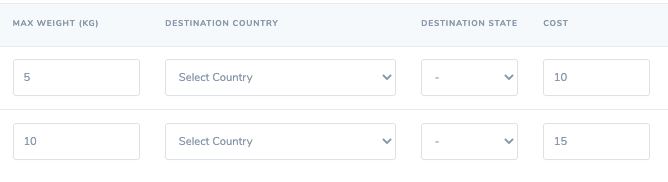
In order to create a shipping weight / price matrix, add in a max weight break and total cost, eg: looking at the below example:
-
Any job where the total product weight is below 5kg will be charged at $10
-
Any job where the total product weight is between 5kg & 9.99 kg will be charged at $15
Note: You must add a Shipping Address in order for the Shipment Options to save and your products to be sold.

Merchi Billing
- To enable your Company to use all Merchi features, a valid credit card needs to be added
- You will then need to choose which plan you would like, once selected this will activate your subscription
- On this page you can also view all invoices under this subscription
Comments
0 comments
Please sign in to leave a comment.