
As a Third Party Supplier you will receive quotes for jobs and once a quote has been approved you will take care of the production and fulfilment of the product/s.
For more information on how to quote a job go here.
Follow the below steps to ensure you have all aspects of a new job covered:
Checklist
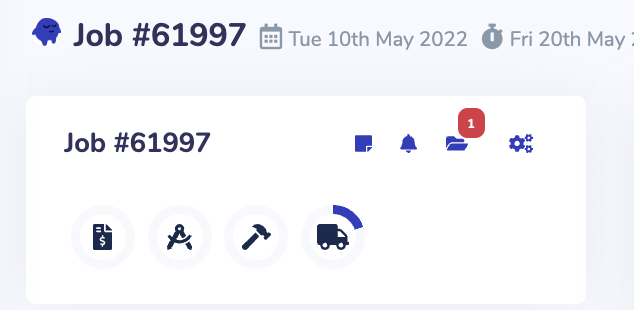
- Open up the job and in the top left hand side you will see a snapshot which will include quick links to notes and notifications, job files, which you can use for production and the drafting process, as well as a snapshot of the production status
- The client’s deadline will also be displayed
Drafting
- Check the draft that has been approved for your records and if there are any questions or comments please contact the supplier directly through the Conversation tab
Create Shipping
If your customer is handling the shipping you will not need to quote for shipping. If you will be responsible for shipping the job to the customer please follow the below steps:
- Select Shipment to see shipping details for customer
- Set a shipping rate - use default or manually add
Submit Quote
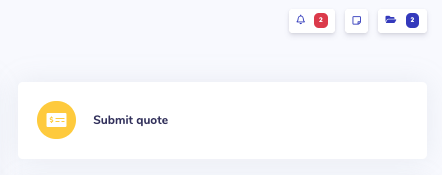
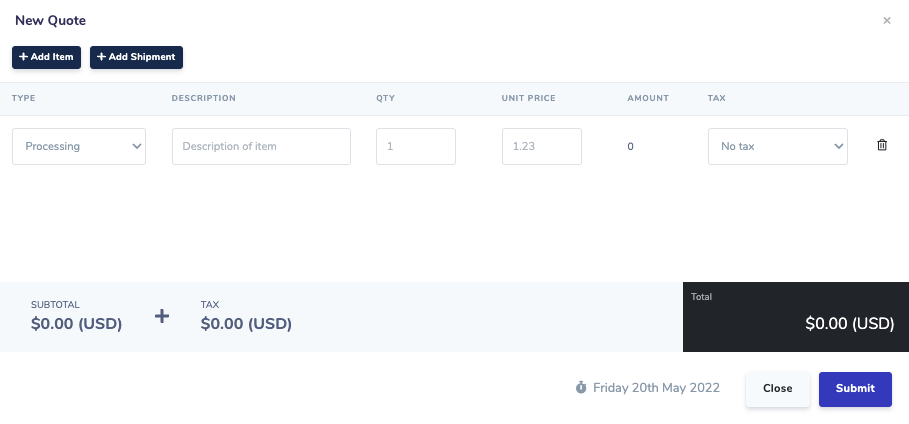
- On the top right hand side you will see a Submit Quote button, click on that and you can create a quote and Submit
- If you have created a Shipment in the prior step you can add it to the quote here
- The job manager from the Primary Supplier will receive your quote and if they are happy with it, they will approve and the job status will move from Quote to Quote Approved.
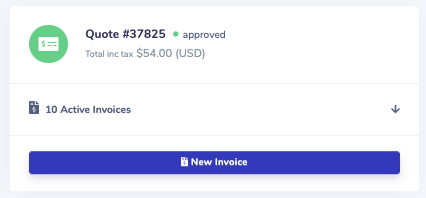
- You can now start production
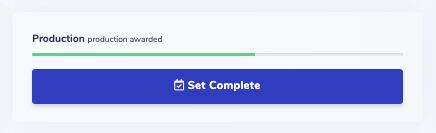
- When production has been completed you can click Set Complete
Complete Shipping
- Enter tracking number
- Send email / SMS to customer which will include all date deadlines
- Create
- Click Save and the job will then turn green
Job Complete
- To put a job in a ‘Complete’ state the user should get each procedure; drafting, invoice, production, shipping to a green progress state. If you don’t need a procedure on a job it can be skipped from the top right gear symbol.
- In the top right hand corner there will be a green Complete button, once this button is clicked then this Job will be removed from your Job table and be considered fully done.
You can skip any of these steps to get to the Green Complete button, but regardless of how you get there you should always click the Green Complete button to ensure that you have a clean, up to date Job table.
Comments
0 comments
Please sign in to leave a comment.